Introduction
GraphTalker is a powerful natural-language query and data analytics interface for working with AllegroGraph repositories. Users can ask questions in any natural language (e.g. English, German, Japanese, etc). GraphTalker uses Claude AI guided by the Knowledge Graph to iteratively generate and execute SPARQL queries and return hallucination-free synthesized answers. While it runs as a separate application, it is deeply integrated with AllegroGraph in much the same way as Gruff. Users can start GraphTalker from the catalog page in WebView and select a repository to connect to, or they can launch it directly from within an open repository in WebView, already connected to that repository.
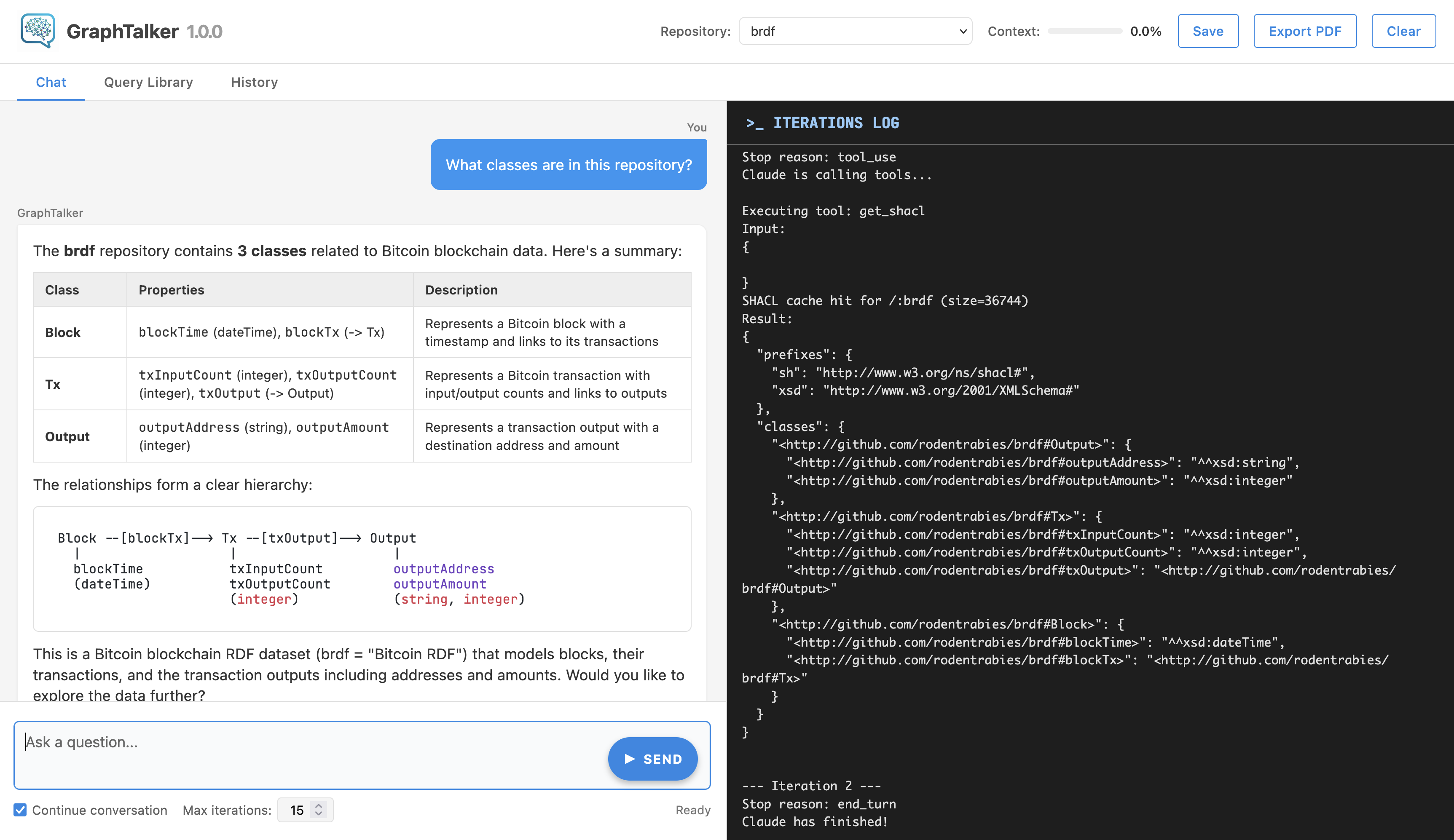
GraphTalker can also be started via a REST API call and interacted with from the agraph-python Python library. See Programmatic Integration below for examples.
Selecting a Repository
The Repo dropdown in the top header lists all available repositories across all AllegroGraph catalogs. Repositories in named catalogs are shown with a catalog:repository prefix; repositories in the root catalog are shown by name alone.
Selecting a repository switches the active database. The conversation is cleared on switch so that GraphTalker starts fresh with the new schema.
Anthropic API Key
If the Anthropic API key is not configured on the server, a dialog appears automatically on startup asking you to enter one. Enter your key (sk-ant-...) and choose how to save it:
- Session - kept in memory for this running instance only; lost when the server restarts;
- User - persisted in AllegroGraph for your user account and the current repository;
- Repository - persisted for all users of the current repository.
The User and Repository options are only available when a repository is selected.
Anthropic API Rate Limits
Anthropic enforces rate limits on API usage based on account tier. Free and low-tier accounts have strict limits on requests per minute and tokens per day. If GraphTalker displays error messages mentioning rate limits or quota exhaustion, this indicates that your Anthropic account has reached the limits for its current tier.
To resolve this, you can:
- Wait and retry - rate limits reset on a per-minute or per-day basis depending on the limit hit.
- Upgrade your Anthropic account - higher usage tiers have significantly higher limits; see the Rate limits page in Claude API Docs for details on tiers and limits or contact Anthropic sales.
- Use your company's Enterprise account - Enterprise accounts have substantially higher rate limits and are the recommended option for production use.
Chat Tab
The Chat tab is the main interface for asking questions.
Asking a Question
Type your question in the text area at the bottom and press Ctrl+Enter or click SEND. GraphTalker will:
- Examine the repository schema (SHACL).
- Look up example queries from the Query Library.
- Generate and execute SPARQL queries iteratively.
- Return a final answer in the chat.
While a query is running the STOP button appears; clicking it aborts the current query.
Conversation Mode
The Continue conversation checkbox (checked by default) keeps context between messages. GraphTalker remembers the schema it already loaded and the queries it already ran, allowing follow-up questions like "Now filter by date" or "Show only the top 10". Uncheck it to start each question from scratch.
Max Iterations
The Max iterations field (default 15) controls how many SPARQL query attempts GraphTalker is allowed before giving up. Increase it for complex questions that need many refinement steps; decrease it for faster, simpler queries.
Chat Layout
- Left panel — the conversation: your questions and GraphTalker's answers, rendered with Markdown, syntax-highlighted code blocks, and tables.
- Right panel (Iterations log) — a live feed of GraphTalker's internal work: the queries it tried, errors it hit, and intermediate results. Useful for debugging or understanding how the answer was reached.
Visualization code blocks (Chart.js configs, network graphs, maps, tables) in GraphTalker's answers are wrapped in a collapsible ▶ Show visualization code widget to avoid clutter. The rendered visualization is accessible from the Query Library after the query is saved.
Context Bar
The Context meter in the header shows what percentage of GraphTalker's 200K token context window is currently in use. As it fills up, older parts of the conversation are condensed automatically to make room.
Header Buttons
| Button | Action |
|---|---|
| Save | Save the current conversation as a named session in the Query Library |
| Export PDF | Export the current chat to a PDF file |
| Clear | Clear the conversation history (keeps configuration) |
Query Library Tab
The Query Library stores SPARQL queries that have been generated and saved during conversations. It is backed by a dedicated AllegroGraph repository.
Note that the default query library repository is the repository graphtalker-query-library in system catalog. If this repo does not exist yet, it will be created automatically when GraphTalker is first started. A superuser has access to this repository by default, but a normal user needs to be given read/write access to it, otherwise GraphTalker's query library operations will not work.
Browsing and Searching
The left panel lists all saved queries for the current repository. Type in the Search box to filter by title or description.
Query Details
Clicking a query opens its details in the right panel:
- Title and Description.
- Repository the query was saved for.
- SPARQL — the full query text, syntax-highlighted and copyable.
- Visualizations — any charts, graphs, maps, or tables that were generated for this query (see below).
- Delete button — permanently removes the query and all its associated visualizations.
Visualizations
If GraphTalker generated a visualization during a conversation (a chart, network graph, map, or table), it is stored alongside the query. Each visualization appears as a card showing its type and description. Clicking a card opens it in a full-screen modal.
Supported visualization types:
- Chart (bar, line, pie, scatter, etc.) — rendered with Chart.js.
- Multi-chart dashboard — several Chart.js charts laid out together.
- Network graph — interactive node-link diagram rendered with D3.js; nodes are draggable.
- Map — geographic data rendered with Leaflet; supports GeoJSON markers and layers.
- Table — structured tabular data with sortable columns.
The modal also displays the text summary that GraphTalker wrote to accompany the visualization.
History Tab
The History tab stores full conversation sessions, allowing you to return to previous investigations.
Saving a Session
Click Save in the header at any point during a conversation. A dialog prompts for a session title. The entire conversation history is saved to the Query Library repository.
Browsing Sessions
The left panel lists saved sessions. The Search box filters by title. Each card shows the title, repository, date, and message count.
Session Details
Clicking a session shows a preview of the conversation in the right panel, with the same Markdown rendering and syntax highlighting as the Chat tab.
From the details panel you can:
- Restore — loads the session back into the Chat tab so you can continue the conversation from where you left off.
- Delete — permanently removes the session.
- Export PDF — exports the session conversation to PDF (click Export PDF in the header while on the History tab with a session selected).
Per-Repository Tutorials
GraphTalker supports domain-specific tutorials that are automatically loaded when switching to a repository. These tutorials give GraphTalker context about the repository's ontology, SPARQL patterns, and domain conventions before it begins answering questions.
How It Works
When a repository is selected, GraphTalker looks for a tutorial directory for that repository under the tutorials base directory. The base directory is
<AllegroGraph-settings-directory>/graphtalker/tutorials/ and the repository-specific tutorials are organized by catalog and repository name:
<base>/
  <repository>/          # root catalog repository
    README.md            # tutorial index (auto-loaded on repo switch)
    my-tutorial.txt      # additional tutorial files
    ...
  <catalog>/
    <repository>/        # named catalog repository
      README.md
      ...
If the tutorial directory for a current repository is found, GraphTalker loads the README.md and can then read individual tutorial files on demand as it formulates queries. Tutorials can also be read manually by asking GraphTalker to load them explicitly.
The README.md Index
The README.md in each repository's tutorial directory serves as an index. It is loaded automatically when the repository is selected and injected into GraphTalker's context. It should list the available tutorial files and briefly describe what each covers, so GraphTalker knows what to read for a given query.
Example README.md:
# Tutorials for my-repository

- `schema-overview.txt` — Overview of the ontology and key classes
- `sparql-patterns.txt` — Common SPARQL patterns for this dataset
- `domain-glossary.txt` — Domain terminology and URI conventions
Writing Tutorials
Tutorials should be written to solve specific, observed problems — not as a routine end-of-session gesture. GraphTalker is already highly capable against a new repository without one; a tutorial earns its keep only when it steers GraphTalker away from mistakes it would otherwise repeat, or enforces rules a deployment requires. Good reasons to write one include:
- SPARQL efficiency patterns — the repository admits many valid but slow queries, and only a few are efficient. Capturing those patterns prevents GraphTalker from rediscovering the slow path each session.
- Complex ontologies — when many classes, overlapping relationships, or non-obvious join routes make it easy to write correct but unhelpful queries, a tutorial can point to the canonical paths for common questions.
- Deployment constraints — in commercial applications, a tutorial can instruct GraphTalker never to expose the underlying KG structure, URIs, or schema details to end users, and to phrase answers in business terms.
Asking GraphTalker to write a tutorial for its own benefit, without a specific problem to solve, has no observable effect on later queries. Write a tutorial only when you can state the problem it is meant to fix.
Tutorial files can be written by GraphTalker itself by explicitly asking it to make a tutorial for the current repository, or placed manually in the tutorial directory. If the tutorial files already exist, GraphTalker will not create or overwrite them; to replace one, delete it first. File names must not contain path separators. Writing README.md automatically refreshes the loaded index.
Keyboard Shortcuts
| Shortcut | Action |
|---|---|
| Ctrl+Enter | Send the current question |
GraphTalker-related Configuration Directives
The following directives in AllegroGraph configuration file (usually agraph.cfg) can be used to configure some aspects of launching GraphTalker from AllegroGraph:
DisableGraphTalker. If true (the default is false) GraphTalker cannot be launched on the AllegroGraph server. Pressing on a GraphTalker menu item in the WebView will show a page with an error message.
MaxGraphTalkerProcesses limits the number of GraphTalker processes that can be run simultaneously. If all permitted processes are currently already running, an attempt to start another one will return an error (and display a page with the error message in WebView). A user can close the tabs with running processes and wait for them to terminate automatically, or manually kill processes from the "Process list" page.
GraphTalker will use the first model specified via a chatModel option in the <llm claude>...</llm> configuration block. A global API key for the server can also be set in this block via the apiKey option:
<llm claude>
 needsApiKey yes
 chatModel claude-opus-4-6
 apiKey sk-ant-...
</llm>
API keys can be configured on per-user/repository basis via the claudeApiKey query option. The API key dialog in GraphTalker will save the key as a query option if "Save for" is set to "User" or "Repository".
It is possible to override the default API endpoint URL to be able to use any Anthropic-compatible API endpoints by using the endpointUrl key:
<llm claude>
 needsApiKey yes
 chatModel claude-opus-4-6
 apiKey sk-ant-...
 endpointUrl https://anthropic-proxy.example.com/v1/messages
</llm>
Note that the URL must be the complete URL of the endpoint, not just a base URL. The /v1/messages path will not be appended automatically.
If the key is set anywhere (in the server-wide config or in per-repository settings), it will be sent to the API endpoint in the x-api-key header, so if the endpoint is a proxy that supplies its own API key and requires the key to not be specified by the caller, make sure the key is not set in the config file nor in the repository query options:
<llm claude>
 needsApiKey yes
 chatModel claude-opus-4-6
 endpointUrl https://anthropic-proxy.example.com/v1/messages
 # no apiKey here
</llm>
Managing GraphTalker in AllegroGraph with agtool
The users can manage versions of GraphTalker included in their AllegroGraph server using agtool, which includes commands for installing and uninstalling GraphTalker versions, checking for new versions available for installation, and selecting a specific version as active.
Execute
agtool graphtalker --help for information on using agtool graphtalker.
GraphTalker versions can be:
Available: released and available for download.
Installed: downloaded to your AllegroGraph installation.
Active: the version that will be used when GraphTalker is launched from WebView.
The command
agtool graphtalker list [available | installed] lists available or installed versions (according to which argument is supplied). The list of installed version indicates which is active.
Programmatic Integration
In addition to its web UI, GraphTalker can be launched through the AllegroGraph REST API and used programmatically from application code. This allows you to embed natural-language graph querying directly into your own applications.
Starting GraphTalker via the REST API
AllegroGraph exposes a /graphtalker endpoint at both the server and repository level. Sending a GET request to either endpoint starts a new GraphTalker process and returns an HTTP redirect to its proxy URL:
- Server level:
GET /graphtalker— starts a GraphTalker instance not yet bound to any repository. - Repository level:
GET /repositories/REPO/graphtalker(or/catalogs/CATALOG/repositories/REPO/graphtalkerfor named catalogs) — starts a GraphTalker instance pre-configured for that repository.
The redirect destination has the form /graphtalker/PORT/, where PORT identifies the instance. All subsequent requests to that instance are made through the AllegroGraph proxy at that path, using the same credentials as any other AllegroGraph request.
Using the agraph-python Library
The agraph-python library provides first-class support for GraphTalker through the startGraphTalker() method on both AllegroGraphServer and RepositoryConnection. The method handles the redirect, constructs the proxy URL, and returns a ready-to-use GraphTalkerClient.
Starting from a repository connection is the most common case, as the repository context is already established:
from franz.openrdf.sail.allegrographserver import AllegroGraphServer
from franz.openrdf.repository.repository import Repository

server = AllegroGraphServer(host="localhost", port=10035,
                            user="test", password="xyzzy")
catalog = server.openCatalog("")
repo = catalog.getRepository("my-repo", Repository.ACCESS)
conn = repo.getConnection()
gt = conn.startGraphTalker()

# Ask first question:
result1 = gt.claude_query("What classes are in this repository?")
print(result1.answer)

# ...
# Continue conversation:
result2 = gt.claude_query("Summarize this dataset.")
print(result2.answer)
GraphTalkerClient is a context manager: exiting the with block shuts down the GraphTalker process automatically:
with conn.startGraphTalker() as gt:
    gt.claude_query("Summarize this dataset.")
Anthropic API Key
When GraphTalker is started by AllegroGraph, the process environment is controlled by AllegroGraph and the Anthropic API key may not be set. The startGraphTalker() method accepts an anthropic_api_key parameter for this case. The key is injected into the running process if it is not already configured:
gt = conn.startGraphTalker(anthropic_api_key="sk-ant-...") You can also check and set the key explicitly at any time:
if not gt.is_anthropic_key_set():
    gt.set_anthropic_key("sk-ant-...")
The key is stored in memory for the lifetime of the process only and is not persisted.
GraphTalkerClient Reference
The GraphTalkerClient class provides a full Python API for interacting with a running GraphTalker instance. Key methods:
| Method | Description |
|---|---|
claude_query(question) | Ask a question; continues the current conversation by default |
claude_ask(question) | Ask a question in a fresh conversation |
generate_sparql(question) | Generate a SPARQL query for a natural language question |
sparql_query(query) | Execute a SPARQL query directly, bypassing Claude |
test_connection() | Verify the AllegroGraph connection is active |
health_check() | Check that the GraphTalker process is reachable |
stop() | Shut down the GraphTalker process |
For the full API reference see the AllegroGraph Python API documentation.
Tips
Start broad, then narrow. Ask "What classes are in the schema?" first to orient GraphTalker, then ask specific questions. GraphTalker reuses the schema it already loaded across messages when "Continue conversation" is on.
Use the iterations log. If an answer looks wrong, check the right panel to see which queries were run and what errors occurred. You can paste a query into a follow-up message to ask GraphTalker to fix it.
Save useful queries. You can ask GraphTalker to save queries to the query library when it finds a good answer. You can rerun or modify saved queries later from the Query Library tab.
Visualizations. Ask for charts or graphs explicitly: "Show me a bar chart of…" or "Visualize the relationship between…". The rendered visualization is stored with the query for later reference.
Session continuity. Save a session before closing the browser if you want to resume the conversation later. Restoring a session reloads the full message history so GraphTalker has the original context.
Read-only access. GraphTalker can both query and modify repository data (via SPARQL Update). If the AllegroGraph user account used for GraphTalker sessions has write access to a repository, GraphTalker can add or delete triples in that repository. In general, this is expected behavior. To guarantee that no modifications can occur, run GraphTalker as an AllegroGraph user who has read-only access to the repository.
- Query library access. As mentioned in the Query Library Tab section above, GraphTalker's query library feature uses
graphtalker-query-libraryrepository in thesystemcatalog. The AllegroGraph user account used for GraphTalker sessions should be given read/write access to that repository in order to use the query library feature.