Introduction
GraphTalker is a powerful natural-language query and data analytics interface for working with AllegroGraph repositories. Users can ask questions in any natural language (e.g. English, German, Japanese, etc). GraphTalker uses Claude AI guided by the Knowledge Graph to iteratively generate and execute SPARQL queries and return hallucination-free synthesized answers. While it runs as a separate application, it is deeply integrated with AllegroGraph in much the same way as Gruff. Users can start GraphTalker from the catalog page in WebView and select a repository to connect to, or they can launch it directly from within an open repository in WebView, already connected to that repository.
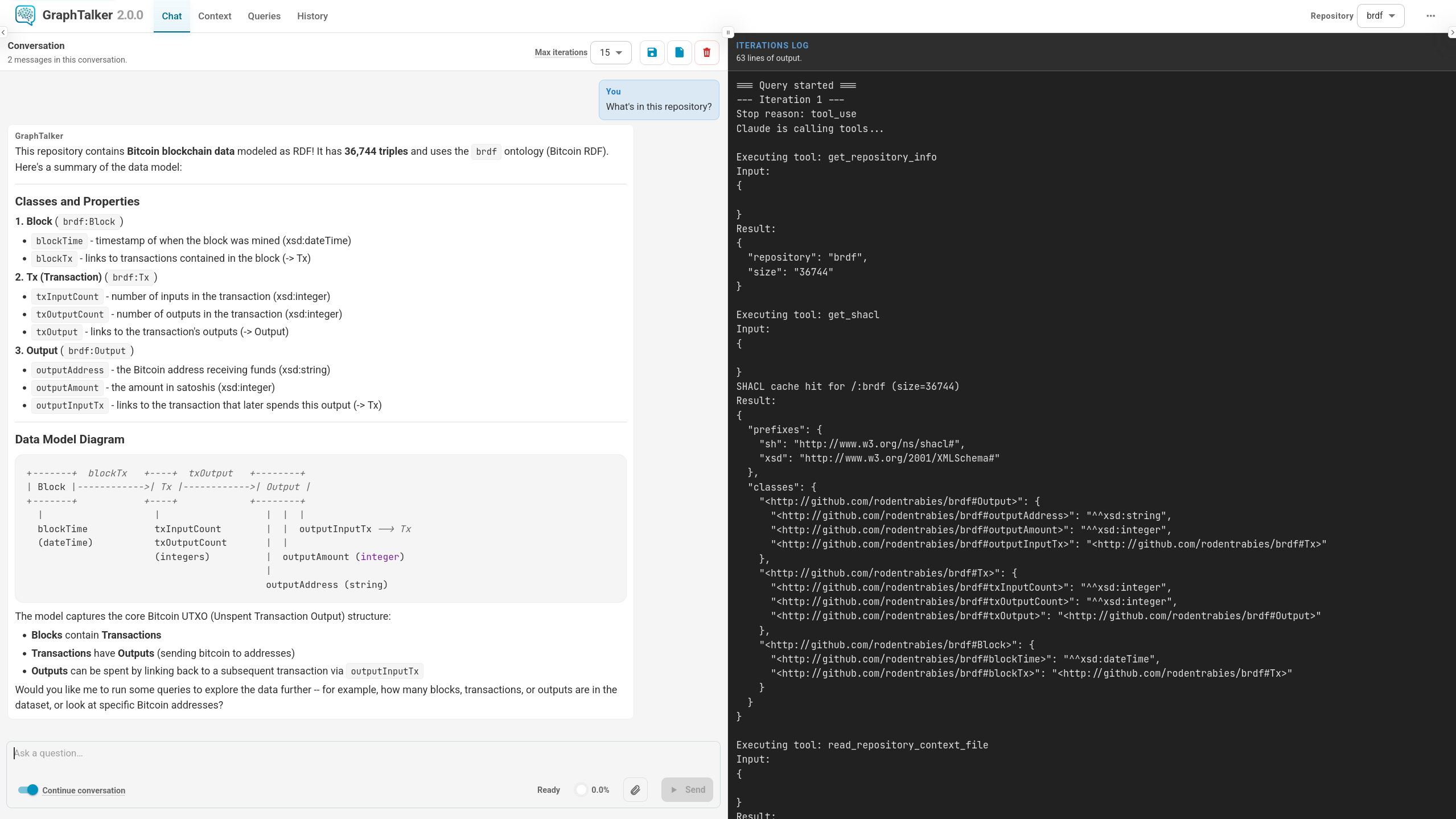
GraphTalker can also be started via a REST API call and interacted with from the agraph-python Python library. See Programmatic Integration below for examples.
Selecting a Repository
The Repo dropdown in the top header lists all available repositories across all AllegroGraph catalogs. Repositories in named catalogs are shown with a catalog:repository prefix; repositories in the root catalog are shown by name alone.
Hovering over an entry in the open dropdown shows that repository's full URL on the server it lives on, including the user GraphTalker connects as (http://user@host:port/catalogs/CATALOG/repositories/REPO).
Selecting a repository switches the active database. The conversation is cleared on switch so that GraphTalker starts fresh with the new schema.
The Metagraph
Besides the data repository you are exploring, GraphTalker keeps a repository of its own — the metagraph — where it stores the artifacts it produces: saved queries and the visualizations generated for them, saved conversation sessions, and the preprocessed schema overviews it builds for repositories with very large schemas.
The metagraph has several parts. The saved queries and the visualizations stored for them together form the query library — the part you browse on the Queries tab. Saved sessions and the schema graphs are separate parts of the same metagraph. So "save this to the query library" asks GraphTalker to store a query, while "the metagraph" refers to the whole repository.
The metagraph repository can be configured with the GraphTalkerMetagraph directive. When it is not set, the default is the repository graphtalker in the system catalog. For backward compatibility, if a repository named graphtalker-query-library (the name used by earlier versions) already exists in the system catalog, GraphTalker keeps using that one instead and the server issues a warning recommending migration to the current name. If the repository does not exist yet, it will be created automatically when GraphTalker is first started. A superuser has access to it by default, but a normal user needs to be given read/write access to it, otherwise some of GraphTalker's artifact operations will be unavailable.
The metagraph lives on the home server — the AllegroGraph server GraphTalker was started from. Switching the active data repository (via the Repo dropdown, or by asking GraphTalker in chat to connect to a repository on another server) does not move the metagraph: it stays on the home server, so your query library and saved sessions remain available regardless of which target repository you are exploring.
The metagraph repository in use is shown in the Metagraph section of the Status & Settings dialog. The syntax used is AllegroGraph's triple store spec syntax (user@[catalog:]repository).
Write Access
Creating, editing, and deleting artifacts — context files, saved queries, and saved sessions — requires write access to the metagraph, where those artifacts are stored. It does not require write access to the data repository you are working with: artifacts describe that repository but are never written to it, so being able to read it is enough. You can freely produce artifacts about a repository you only have read access to.
Because the metagraph lives on the stable home server (see The Metagraph), it may sit on a different server than the data repository, and switching repositories never changes what you may write.
Your permission is checked against AllegroGraph at the moment you act, not remembered from when you connected. Granting or revoking write access on the metagraph therefore takes effect on your next action — there is no need to reconnect or restart GraphTalker for a permission change to apply. If the home server cannot be reached to check, the action is refused rather than allowed.
Without metagraph write access GraphTalker stays fully usable for asking questions and browsing, but the actions that would modify artifacts are disabled: the context file editor becomes read-only (Add, Save, Delete, and version Restore are unavailable), and the Delete and Save actions for queries and sessions are turned off. Restoring, exporting, and browsing need only read access and stay available. When the server refuses an action, GraphTalker shows the reason and names the metagraph repository you lack access to.
Status and Settings
The ... button at the right end of the header opens the Status & Settings dialog, which collects everything about the workspace that is not navigation:
- Metagraph - which repository GraphTalker stores its artifacts in;
- Anthropic API key - whether a key is currently set, and a form to set or replace one (see Anthropic API Key);
- Theme - Light, Dark, or System, which follows your operating system setting.
Anthropic API Key
If the Anthropic API key is not configured on the server, a dialog appears automatically on startup asking you to enter one. If you close it without entering a key, an orange warning triangle stays in the header. GraphTalker reports every configuration problem this way. Hovering over the warning icon shows a tooltip with an explanation of what failed.
You can also set or replace the key at any time from the Anthropic API key section of the Status & Settings dialog. Enter your key (sk-ant-...) and choose how to save it:
- Session - kept in memory for this running instance only; lost when the server restarts;
- User - persisted in AllegroGraph for your user account and the current repository;
- Repository - persisted for all users of the current repository.
The User and Repository options are only available when a repository is selected.
Anthropic API Rate Limits
Anthropic enforces rate limits on API usage based on account tier. Free and low-tier accounts have strict limits on requests per minute and tokens per day. If GraphTalker displays error messages mentioning rate limits or quota exhaustion, this indicates that your Anthropic account has reached the limits for its current tier.
To resolve this, you can:
- Wait and retry - rate limits reset on a per-minute or per-day basis depending on the limit hit.
- Upgrade your Anthropic account - higher usage tiers have significantly higher limits; see the Rate limits page in Claude API Docs for details on tiers and limits or contact Anthropic sales.
- Use your company's Enterprise account - Enterprise accounts have substantially higher rate limits and are the recommended option for production use.
Tips
Start broad, then narrow. Ask "What classes are in the schema?" first to orient GraphTalker, then ask specific questions. GraphTalker reuses the schema it already loaded across messages when "Continue conversation" is on.
Use the iterations log. If an answer looks wrong, check the right panel to see which queries were run and what errors occurred. You can paste a query into a follow-up message to ask GraphTalker to fix it.
Save useful queries. You can ask GraphTalker to save queries to the metagraph when it finds a good answer. You can rerun or modify saved queries later from the Queries tab.
Visualizations. Ask for charts or graphs explicitly: "Show me a bar chart of…" or "Visualize the relationship between…". The rendered visualization is stored with the query for later reference.
Session continuity. Save a session before closing the browser if you want to resume the conversation later. Restoring a session reloads the full message history so GraphTalker has the original context.
Read-only access. GraphTalker can both query and modify repository data (via SPARQL Update). If the AllegroGraph user account used for GraphTalker sessions has write access to a repository, GraphTalker can add or delete triples in that repository. In general, this is expected behavior. To guarantee that no modifications can occur, run GraphTalker as an AllegroGraph user who has read-only access to the repository.
Metagraph access. As mentioned in The Metagraph section above, GraphTalker stores the artifacts it produces in a repository in the
systemcatalog (graphtalkerby default; see GraphTalkerMetagraph). The AllegroGraph user account used for GraphTalker sessions should be given read access to that repository in order to be able to view the existing artifacts and write access to be able to update them or create new ones.
Chat Tab
The Chat tab is the main interface for asking questions.
Asking a Question
Type your question in the text area at the bottom and press Ctrl+Enter or click SEND. GraphTalker will:
- Examine the repository schema (SHACL).
- Look up example queries from the metagraph.
- Generate and execute SPARQL queries iteratively.
- Return a final answer in the chat.
While a query is running the STOP button appears; clicking it aborts the current query.
Attaching Documents
You can attach a document to a question so GraphTalker can read it as part of your request. Click the paperclip button to the left of SEND, or drag a file onto the message box. Attachments appear above the message box (images as thumbnails); remove one with the × on its chip. A message may contain only attachments, with no text.
| Type | Formats | How GraphTalker uses it |
|---|---|---|
| Image | PNG, JPEG, GIF, WebP | Sent to Claude as an image (vision) |
| Sent to Claude as a document | ||
| Text | Plain text (.txt), CSV (.csv) | Inserted into the question as text |
Images you attach are shown inline in the conversation, in the exported PDF, and in a saved session's preview.
Limitations:
- Size limits are set by Anthropic. GraphTalker does not impose its own size cap; the Anthropic API enforces the limits (currently about 32 MB per request, and roughly 100 pages for a PDF). If an attachment is too large, the request is rejected and GraphTalker shows the error it returns.
- Attachments apply to a single question. A file is sent to Claude only with the message it is attached to; it is not sent again on follow-up questions. If a later question needs the same document, attach it again. (Claude still remembers what it wrote about the document earlier in the conversation.)
- Only images are kept for later viewing. When you save a session or export to PDF, attached images reappear, but PDF and text/CSV attachments are not preserved — they show only as a file name. Stored images are for display only and are not re-read by Claude when a session is restored.
- Attachments count against the context window. A large image, PDF, or CSV consumes part of the token context budget on the turn it is sent.
Conversation Mode
The Continue conversation checkbox (checked by default) keeps context between messages. GraphTalker remembers the schema it already loaded and the queries it already ran, allowing follow-up questions like "Now filter by date" or "Show only the top 10". Uncheck it to start each question from scratch.
Max Iterations
The Max iterations field (default 15) controls how many SPARQL query attempts GraphTalker is allowed before giving up. Increase it for complex questions that need many refinement steps; decrease it for faster, simpler queries.
Chat Layout
- Left panel — the conversation: your questions and GraphTalker's answers, rendered with Markdown, syntax-highlighted code blocks, and tables.
- Right panel (Iterations log) — a live feed of GraphTalker's internal work: the queries it tried, errors it hit, and intermediate results. Useful for debugging or understanding how the answer was reached.
Visualization code blocks (Chart.js configs, network graphs, maps, tables) in GraphTalker's answers are wrapped in a collapsible ▶ Show visualization code widget to avoid clutter. The rendered visualization is accessible from the Queries tab after the query is saved.
Context Bar
The Context meter in the header shows what percentage of GraphTalker's 200K token context window is currently in use. As it fills up, older parts of the conversation are condensed automatically to make room.
Header Buttons
| Button | Action |
|---|---|
| Save | Save the current conversation as a named session in the metagraph |
| Export PDF | Export the current chat to a PDF file |
| Clear | Clear the conversation history (keeps configuration) |
Context Tab
The Context tab lets you view and edit the repository context files for the current repository directly in the browser. See Repository Context Files below for what these context files are and how GraphTalker uses them.
Browsing Context Files
The left panel lists the context files (.md and .txt) found in the current repository's context file directory. Each item shows the file name and when it was last modified. README.md is pinned to the top and marked with an Index marker, since it serves as the context file index.
If the current repository has no context file directory configured, the list is empty.
Creating a Context File
The Add button above the context file list opens a dialog with a Create file / Upload file / Import archive toggle for adding context files to the current repository.
In the first two modes you supply a file name. The file name has to have either .md or .txt extension. Omitting the extension creates the default .md file. The file name also cannot contain path separators or match existing context file names.
- Create file (the default) writes a new empty file. Enter a file name and click Create.
- Upload file adds an existing
.mdor.txtfile from your computer. Drag a file onto the drop zone or click it to browse and pick one; its contents are read in the browser and the Save as name defaults to the uploaded file's name, which you can edit before saving. Click Upload to save it. - Import archive restores a whole set of context files at once from a
.tar.gzarchive produced by Export — see Exporting and importing below.
The new file is written to the current repository's context file directory (see Repository Context Files) and immediately selected so you can start editing it.
Editing a Context File
Clicking a file opens it in the editor on the right. A view-mode toggle switches between three modes:
- Edit — the raw file content in a plain text editor.
- Split — editor and preview side by side.
- Preview (the default) — the rendered context file.
.mdfiles (includingREADME.md) are rendered as Markdown;.txtfiles are shown verbatim as plain text.
The preview updates live as you type. An Unsaved changes marker appears whenever the editor differs from the saved file.
The editor header provides four actions:
- Save — writes the current content back to the file, overwriting the existing file. The previous content is first saved as a version (see Version history below), so a save can be undone. Saving
README.mdrefreshes the loaded context file index. - Download — saves the current content (including any unsaved edits) to a file on your computer.
- Versions — opens the version history for the file (see below).
- Delete — permanently removes the context file, after a confirmation prompt.
Saving over an existing file — whether from the Context tab or from GraphTalker's own write_repository_context_file tool — overwrites it, but the previous content is first saved to the file's version history (see below), so the change can be undone. Deleting a context file from the Context tab, by contrast, is permanent.
When you lack write access to the metagraph, the editor is read-only: Add, Save, Delete, and version Restore are disabled, while Download, Versions browsing, and the Diff/Preview views remain available. See Write Access.
Version history
Each time you save an edit to a context file, GraphTalker first snapshots the file's previous content, so saves are no longer irreversible.
The Versions button in the editor header opens a dialog listing the saved versions, newest first. Selecting a version shows, by default, a Preview of its content on its own (rendered the same way as the editor preview). A Diff toggle switches to a line-by-line comparison against the current file: removed lines (in the selected version but no longer in the current file) are marked with - and tinted red, added lines (in the current file but not in that version) are marked with + and tinted green. Restore this version replaces the current file with the selected version.
Restoring is itself reversible: because a restore is just another save, the content you are replacing is snapshotted first and appears as a new entry at the top of the history.
GraphTalker keeps a bounded number of recent versions per file (20 by default) and prunes older ones. No-op saves — saving without having changed anything — do not create a version. Versions are stored alongside the context files in a hidden .versions directory and are not shown in the context file list.
Exporting and importing
A repository's whole set of context files can be moved in and out of GraphTalker as a single archive — to back them up, to hand them to a colleague, or to promote them from one repository to another.
Export. The Export button above the file list downloads every context file in the current repository, together with its kept version history, as one graphtalker-context-<catalog>-<repository>-<timestamp>.tar.gz — for example graphtalker-context-demos-hr-analytics-20260714T140312.tar.gz. The catalog segment is omitted for the root catalog, and the timestamp runs to the second so repeated exports of the same repository do not overwrite one another. It is an ordinary gzipped tar archive: tar tzvf lists it, and unpacking it gives you the files as they sit on the server, with each file's snapshots under .versions/<filename>/.
Import. The Import archive mode of the Add dialog takes such an archive back. Drag a .tar.gz (or .tgz, or an uncompressed .tar) onto the drop zone, or click to browse, and click Import. GraphTalker reports how many files and versions it took in.
Importing into a repository that already has context files is safe:
- A file that already exists is overwritten, but its current content is snapshotted into version history first — so an import can be undone from the Versions dialog, one file at a time, exactly like any other save.
- Version snapshots from the archive are added to each file's history under their original ids, keeping the dates they were actually taken. Snapshots already present are not duplicated.
- History is pruned to the usual per-file limit afterwards, so importing a large history into a file that already has one keeps the most recent versions.
- Entries in the archive that are not context files (unexpected paths, or extensions other than
.md/.txt) are skipped and reported rather than written.
Both actions apply to the repository you are currently connected to, and importing requires write access to it.
Queries Tab
The Queries tab lists SPARQL queries that have been generated and saved during conversations. Together with their visualizations they form the query library, part of GraphTalker's Metagraph repository.
Browsing and Searching
The left panel lists all saved queries for the current repository. Type in the Search box to filter by title or description.
Query Details
Clicking a query opens its details in the right panel:
- Title and Description.
- Repository the query was saved for.
- SPARQL — the full query text, syntax-highlighted and copyable.
- Visualizations — any charts, graphs, maps, or tables that were generated for this query (see below).
- Delete button — permanently removes the query and all its associated visualizations. Disabled without write access (see Write Access).
Visualizations
If GraphTalker generated a visualization during a conversation (a chart, network graph, map, or table), it is stored alongside the query. Each visualization appears as a card showing its type and description. Clicking a card opens it in a full-screen modal.
Supported visualization types:
- Chart (bar, line, pie, scatter, etc.) — rendered with Chart.js.
- Multi-chart dashboard — several Chart.js charts laid out together.
- Network graph — interactive node-link diagram rendered with D3.js; nodes are draggable.
- Map — geographic data rendered with Leaflet; supports GeoJSON markers and layers.
- Table — structured tabular data with sortable columns.
The modal also displays the text summary that GraphTalker wrote to accompany the visualization.
History Tab
The History tab stores full conversation sessions, allowing you to return to previous investigations.
Saving a Session
Click Save in the header at any point during a conversation. A dialog prompts for a session title. The entire conversation history is saved to the metagraph repository. Save is disabled without write access (see Write Access).
Browsing Sessions
The left panel lists saved sessions. The Search box filters by title. Each card shows the title, repository, date, and message count.
Session Details
Clicking a session shows a preview of the conversation in the right panel, with the same Markdown rendering and syntax highlighting as the Chat tab.
From the details panel you can:
- Restore — loads the session back into the Chat tab so you can continue the conversation from where you left off.
- Delete — permanently removes the session. Disabled without write access (see Write Access).
- Export PDF — exports the session conversation to PDF (click Export PDF in the header while on the History tab with a session selected).
Repository Context Files
GraphTalker lets you maintain per-repository sets of domain-specific notes called context files. These files are automatically loaded when switching to a repository and give GraphTalker context about the repository's ontology, SPARQL patterns, and domain conventions before it begins answering questions.
How It Works
When a repository is selected, GraphTalker looks for a context file directory for that repository under the context file base directory. The base directory is
<AllegroGraph-settings-directory>/graphtalker/context-files/ For backward compatibility purposes GraphTalker also reads the old deprecated default base directory in the same layout:
<AllegroGraph-settings-directory>/graphtalker/tutorials/ Both are searched and their files are presented as one list, so an installation that predates the rename keeps working untouched. New files are always created under the context-files/ directory, and a file that already lives under tutorials/ is edited where it is. When the same file name appears in both, the context-files/ copy is the one you see and edit. Note that support for reading the deprecated default base directory will be dropped in the future releases.
In either base directory, the repository-specific context files are organized by catalog and repository name:
<base>/
  <repository>/          # root catalog repository
    README.md            # context file index (auto-loaded on repo switch)
    sparql-patterns.md   # additional context files in Markdown format
    domain-glossary.txt  # additional context files in plain text
    ...
  <catalog>/
    <repository>/        # named catalog repository
      README.md
      ...
If the context file directory for a current repository is found, GraphTalker loads the README.md index and can then read the context files it lists on demand as it formulates queries. Context files can also be read manually by asking GraphTalker to load them explicitly.
The README.md Index
The README.md in each repository's context file directory serves as an index. It is loaded automatically when the repository is selected and injected into GraphTalker's context. It should list the available context files and briefly describe what each covers, so GraphTalker knows what to read for a given query.
Example README.md:
# Context files for my-repository

- `schema-overview.txt` — Overview of the ontology and key classes
- `sparql-patterns.txt` — Common SPARQL patterns for this dataset
- `domain-glossary.txt` — Domain terminology and URI conventions
The index is what makes the other context files reachable. If a repository's context file directory has no README.md, nothing is loaded when the repository is selected: the remaining context files are still readable, but GraphTalker has no listing of them and will not read one unless you name it in a question.
Writing Context Files
Context files should be written to solve specific, observed problems — not as a routine end-of-session gesture. GraphTalker is already highly capable against a new repository without one; a context file earns its keep only when it steers GraphTalker away from mistakes it would otherwise repeat, or enforces rules a deployment requires. Good reasons to write one include:
- SPARQL efficiency patterns — the repository admits many valid but slow queries, and only a few are efficient. Capturing those patterns prevents GraphTalker from rediscovering the slow path each session.
- Complex ontologies — when many classes, overlapping relationships, or non-obvious join routes make it easy to write correct but unhelpful queries, a context file can point to the canonical paths for common questions.
- Deployment constraints — in commercial applications, a context file can instruct GraphTalker never to expose the underlying KG structure, URIs, or schema details to end users, and to phrase answers in business terms.
Asking GraphTalker to write a context file for its own benefit, without a specific problem to solve, has no observable effect on later queries. Write a context file only when you can state the problem it is meant to fix.
Context files can be written by GraphTalker itself by explicitly asking it to make a context file for the current repository, placed manually in the context file directory, or created and edited from the Context tab. If the context files already exist, GraphTalker itself will not create or overwrite them; to replace one, delete it first or edit it from the Context tab, which can overwrite and delete files. File names must not contain path separators. Writing README.md automatically refreshes the loaded index.
Keyboard Shortcuts
| Shortcut | Action |
|---|---|
| Ctrl+Enter | Send the current question |
GraphTalker-related Configuration Directives
The following directives in AllegroGraph configuration file (usually agraph.cfg) can be used to configure some aspects of launching GraphTalker from AllegroGraph:
DisableGraphTalker. If true (the default is false) GraphTalker cannot be launched on the AllegroGraph server. Pressing on a GraphTalker menu item in the WebView will show a page with an error message.
GraphTalkerMetagraph specifies the triple store in which GraphTalker keeps its metagraph. It defaults to
system:graphtalker(or the pre-existing legacysystem:graphtalker-query-library, for backward compatibility).MaxGraphTalkerProcesses limits the number of GraphTalker processes that can be run simultaneously. If all permitted processes are currently already running, an attempt to start another one will return an error (and display a page with the error message in WebView). A user can close the tabs with running processes and wait for them to terminate automatically, or manually kill processes from the "Process list" page.
GraphTalker will use the first model specified via a chatModel option in the <llm claude>...</llm> configuration block. A global API key for the server can also be set in this block via the apiKey option:
<llm claude>
 needsApiKey yes
 chatModel claude-opus-4-6
 apiKey sk-ant-...
</llm>
API keys can be configured on per-user/repository basis via the claudeApiKey query option. The API key dialog in GraphTalker will save the key as a query option if "Save for" is set to "User" or "Repository".
It is possible to override the default API endpoint URL to be able to use any Anthropic-compatible API endpoints by using the endpointUrl key:
<llm claude>
 needsApiKey yes
 chatModel claude-opus-4-6
 apiKey sk-ant-...
 endpointUrl https://anthropic-proxy.example.com/v1/messages
</llm>
Note that the URL must be the complete URL of the endpoint, not just a base URL. The /v1/messages path will not be appended automatically.
If the key is set anywhere (in the server-wide config or in per-repository settings), it will be sent to the API endpoint in the x-api-key header, so if the endpoint is a proxy that supplies its own API key and requires the key to not be specified by the caller, make sure the key is not set in the config file nor in the repository query options:
<llm claude>
 needsApiKey yes
 chatModel claude-opus-4-6
 endpointUrl https://anthropic-proxy.example.com/v1/messages
 # no apiKey here
</llm>
Managing GraphTalker in AllegroGraph with agtool
The users can manage versions of GraphTalker included in their AllegroGraph server using agtool, which includes commands for installing and uninstalling GraphTalker versions, checking for new versions available for installation, and selecting a specific version as active.
Execute
agtool graphtalker --help for information on using agtool graphtalker.
GraphTalker versions can be:
Available: released and available for download.
Installed: downloaded to your AllegroGraph installation.
Active: the version that will be used when GraphTalker is launched from WebView.
The command
agtool graphtalker list [available | installed] lists available or installed versions (according to which argument is supplied). The list of installed version indicates which is active.
Programmatic Integration
In addition to its web UI, GraphTalker can be launched through the AllegroGraph REST API and used programmatically from application code. This allows you to embed natural-language graph querying directly into your own applications.
Starting GraphTalker via the REST API
AllegroGraph exposes a /graphtalker endpoint at both the server and repository level. Sending a GET request to either endpoint starts a new GraphTalker process and returns an HTTP redirect to its proxy URL:
- Server level:
GET /graphtalker— starts a GraphTalker instance not yet bound to any repository. - Repository level:
GET /repositories/REPO/graphtalker(or/catalogs/CATALOG/repositories/REPO/graphtalkerfor named catalogs) — starts a GraphTalker instance pre-configured for that repository.
The redirect destination has the form /graphtalker/PORT/, where PORT identifies the instance. All subsequent requests to that instance are made through the AllegroGraph proxy at that path, using the same credentials as any other AllegroGraph request.
Using the agraph-python Library
The agraph-python library provides first-class support for GraphTalker through the startGraphTalker() method on both AllegroGraphServer and RepositoryConnection. The method handles the redirect, constructs the proxy URL, and returns a ready-to-use GraphTalkerClient.
Starting from a repository connection is the most common case, as the repository context is already established:
from franz.openrdf.sail.allegrographserver import AllegroGraphServer
from franz.openrdf.repository.repository import Repository

server = AllegroGraphServer(host="localhost", port=10035,
                            user="test", password="xyzzy")
catalog = server.openCatalog("")
repo = catalog.getRepository("my-repo", Repository.ACCESS)
conn = repo.getConnection()
gt = conn.startGraphTalker()

# Ask first question:
result1 = gt.claude_query("What classes are in this repository?")
print(result1.answer)

# ...
# Continue conversation:
result2 = gt.claude_query("Summarize this dataset.")
print(result2.answer)
GraphTalkerClient is a context manager: exiting the with block shuts down the GraphTalker process automatically:
with conn.startGraphTalker() as gt:
    gt.claude_query("Summarize this dataset.")
Anthropic API Key
When GraphTalker is started by AllegroGraph, the process environment is controlled by AllegroGraph and the Anthropic API key may not be set. The startGraphTalker() method accepts an anthropic_api_key parameter for this case. The key is injected into the running process if it is not already configured:
gt = conn.startGraphTalker(anthropic_api_key="sk-ant-...") You can also check and set the key explicitly at any time:
if not gt.is_anthropic_key_set():
    gt.set_anthropic_key("sk-ant-...")
The key is stored in memory for the lifetime of the process only and is not persisted.
GraphTalkerClient Reference
The GraphTalkerClient class provides a full Python API for interacting with a running GraphTalker instance. Key methods:
| Method | Description |
|---|---|
claude_query(question) | Ask a question; continues the current conversation by default |
claude_ask(question) | Ask a question in a fresh conversation |
generate_sparql(question) | Generate a SPARQL query for a natural language question |
sparql_query(query) | Execute a SPARQL query directly, bypassing Claude |
test_connection() | Verify the AllegroGraph connection is active |
health_check() | Check that the GraphTalker process is reachable |
stop() | Shut down the GraphTalker process |
For the full API reference see the AllegroGraph Python API documentation.
HTTP API
A running GraphTalker instance serves its web UI and a JSON API on the same port. When GraphTalker is started from AllegroGraph, the paths below are reached through the AllegroGraph proxy prefix /graphtalker/PORT/. For example, on a GraphTalker instance running on port 12345, the full URL of the /stream endpoint will be
https://allegrograph-host:10035/graphtalker/12345/stream An instance holds a single conversation, so ask one question at a time. A question asked on /stream is stopped with /api/abort; a question asked through /eval (as the Python client does) is stopped with /abort.
Below is the full reference of the HTTP API exposed by a GraphTalker instance.
URL Summary
/ GET
/stream GET POST
/health GET
/eval POST
/abort POST
/api/context GET
/conversation GET
/clear POST
/abort POST
/heartbeat POST
/config GET
/version GET
/repositories GET
/repository POST
/settings/anthropicApiKey GET POST
/context-files GET
/[FILENAME] GET PUT DELETE
/versions GET
/[VERSION] GET
/restore POST
/context-files-archive GET POST
/queries GET
/[URI] GET DELETE
/visualizations GET
/sessions GET POST
/[URI] GET DELETE
/restore POST
API Reference
/chat, /context, /queries and /history serve the same page; any other path falls through to the static frontend bundle. arguments
- question, stringThe natural language question. Required.
- continue, boolean (default: true)Continue the current conversation instead of starting a fresh one.
- maxIterations, integerLimit on tool-calling iterations for this question.
GET form, but the arguments are sent as a JSON body and documents may be attached to the question. arguments
- question, stringThe natural language question. Required.
- continue, boolean (default: true)Continue the current conversation instead of starting a fresh one.
- maxIterations, integerLimit on tool-calling iterations for this question.
- attachments, listText, CSV, PDF or image documents to send with the question. They live for the duration of the conversation and are not stored.
ENABLEEVALENDPOINT set to false. arguments
- expression, stringThe expression to evaluate. Required.
/eval. Each aborted /eval request returns the output printed before the abort, with the error Query aborted by user. Does not stop a question streaming on /stream; use /api/abort for that. /stream. The stream ends with an error_msg event and a done event marked aborted. Does not stop an evaluation running on /eval; use /abort for that. /api/repositories. arguments
- repository, stringThe repository to connect to.
- catalog, stringThe catalog it lives in. Omit for the root catalog.
arguments
- apiKey, stringThe key. Required.
- saveType, string (default: session)Where to keep it:
sessionfor this process only, oruserorrepositoryto save it as a query option.
arguments
- content, stringThe new file content.
.tar.gz. arguments
- archive, stringThe
.tar.gz, base64-encoded. Required.
arguments
- sessionId, stringIdentifier for the session; a new one is generated when omitted.
- title, stringTitle shown in the History tab.